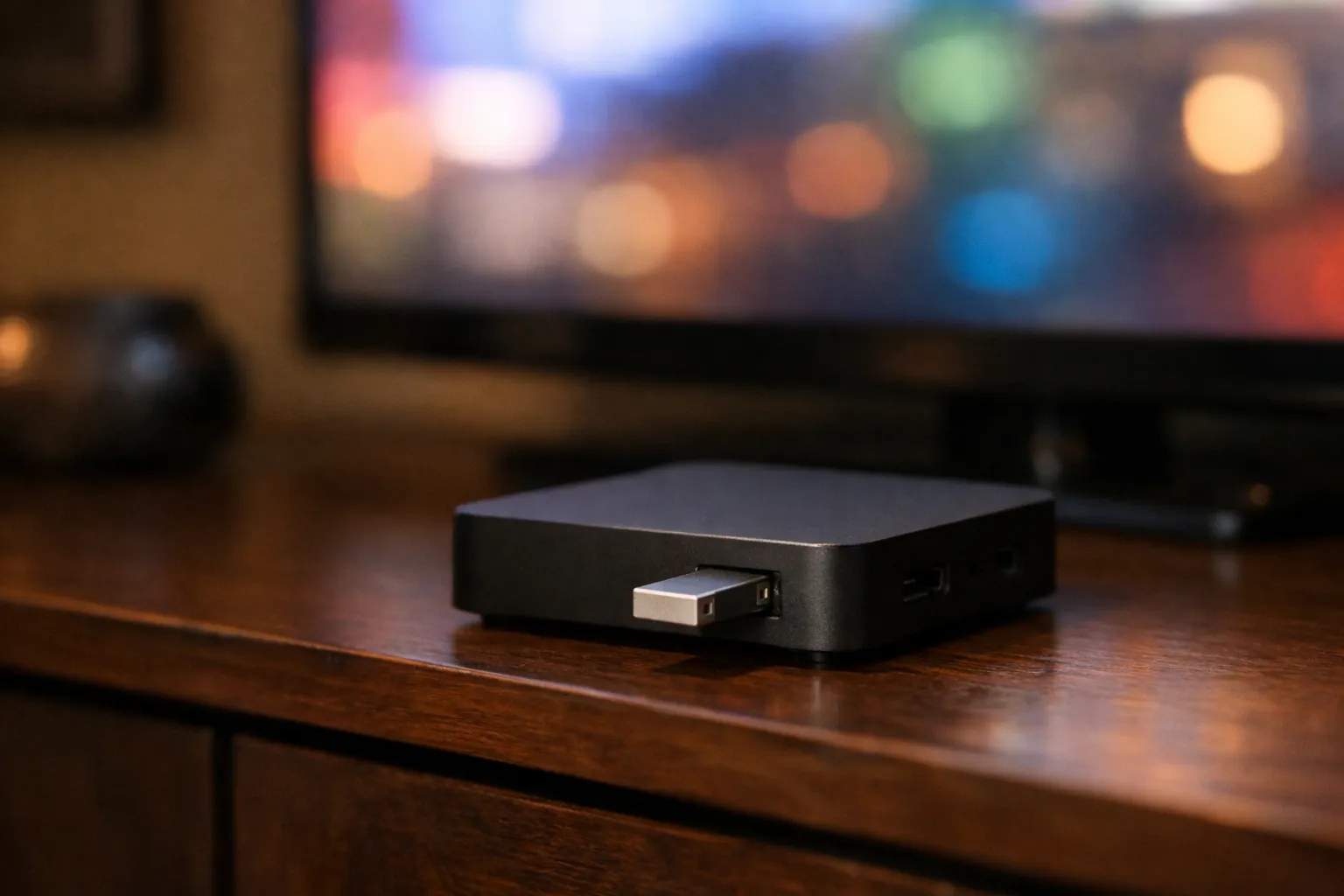
Recording is the feature that turns TiviMate into a DVR, and it is one of the most common reasons people pay for Premium. TiviMate’s Google Play listing names it plainly: “Recording: Record your favorite shows to watch later.” The developer publishes no manual, so the steps below come from the listing and from two independent guides, and the wording on your screen may differ by version.
What do you need to record on TiviMate?
- TiviMate Premium. FireStickTricks’ TiviMate guide, updated in February 2026, lists recording among the Premium features. Our guide to whether TiviMate is free explains what the upgrade covers and where to see its price.
- A playlist. TiviMate has no channels of its own, so the stream comes from your IPTV provider.
- Storage. The device’s own space, which is small on most sticks, or a USB drive.
- A spare connection. A recording holds a stream open. Watching another channel at the same time uses a second one, so a 1-device plan may refuse it.
- A correct TV guide, for scheduled recordings, because the recording starts and stops at the guide’s times.
How do you record a programme in TiviMate?
Record what is on now
FireStickTricks describes the simplest method: open the programme in TiviMate’s player and press the Record button. To watch it later, go to the Recordings section on TiviMate’s home screen.
Schedule a recording from the TV guide
Move forward in the TV guide to a programme that has not started, open its options and look for Record. The recording then starts on its own at the guide time, as long as the device is on and TiviMate can reach the server. Test a short programme first and play it back before you trust it with something that matters.
Choose where recordings are saved
AFTVnews places the setting on the Recordings page: select the gear icon in the upper right, then Recordings folder, then Select folder, and choose the drive.
How do you record to a USB drive on a Fire TV?
On newer Fire TV models there is an extra step. AFTVnews, writing in October 2023 about the 2nd-generation Fire TV Stick 4K and 4K Max, explains that Fire OS 8 is based on Android 11, whose stricter file permissions stop apps like TiviMate reaching USB storage directly. Its method:
- Clear the data of the built-in Files app, under Settings, Applications, Manage Installed Applications.
- In TiviMate, open the Recordings page, select the gear icon, then Recordings folder and Select folder.
- Choose System picker and browse to a folder on the USB drive.
- Check that the folder path starts with content://com.android.externalstorage.documents, then press OK.
AFTVnews says this needs either ADB commands from another device or a keyboard connected at the same time as the drive; a remote alone will not do. Some readers reported later that the picker did not open for them, so check it on your own Fire OS version. A device with a proper USB port and a standard Android TV system avoids the problem.
How much space does a TiviMate recording take?
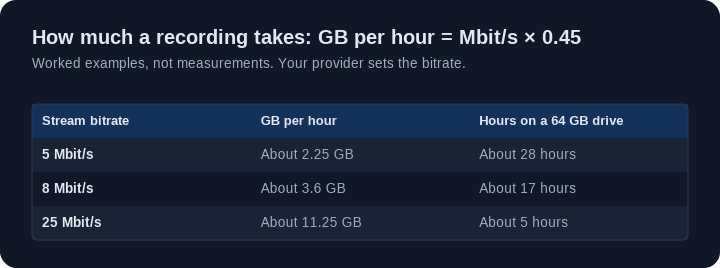
It is arithmetic. Megabits per second, times 3,600 seconds, divided by 8 bits and by 1,000 gives gigabytes per hour, which works out at the bitrate times 0.45. Your provider sets the bitrate, so these are worked examples, not measurements of any service:
- 5 Mbit/s: about 2.25 GB an hour, so a 64 GB drive holds about 28 hours.
- 8 Mbit/s: about 3.6 GB an hour, about 17 hours on 64 GB.
- 25 Mbit/s: about 11.25 GB an hour, about 5 hours on 64 GB.
For your own figure, record ten minutes of a channel you watch, check the file size and multiply by six for an hour.
Does TiviMate have catch-up?
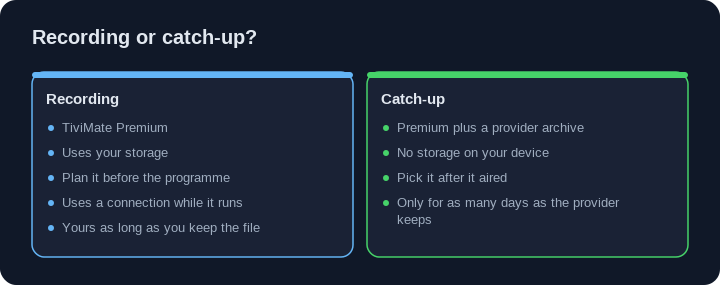
Yes, as a feature: the listing describes catch-up as a way to “access past broadcasts so you never miss a show”, and independent guides list it under Premium. But TiviMate only plays the archive; it does not keep one. Catch-up works on a channel only if your provider stores past programmes for it, and for as many days as they store them. That is the real difference from recording: catch-up uses no storage and no planning, while a recording is yours for as long as you keep the file.
Tivimate’s own subscription includes an EPG and 7-day catch-up TV on the channels that offer it, and plans cover 1 to 4 devices, so a household that records while watching can pick a tier with a spare connection on the Tivimate plans page. If you are still testing, a 24-hour Tivimate trial is enough to check catch-up on the channels you care about.
Can you record while using an external player?
Recording is a TiviMate feature, so it needs TiviMate’s own player. Some setup guides report that handing playback to another app means built-in features such as recording and multiview stop applying to those channels. If you switched players for one channel, see our TiviMate external player guide to switch it back. For recording on devices other than TiviMate, the single-device recording guide on tivimate.me covers other apps and VLC on a computer.
Frequently asked questions
Can you record on TiviMate without Premium?
Not as far as independent guides report: FireStickTricks lists recording among the Premium features. The free version plays your playlist with the TV guide but does not record. If recording is the only feature you want, check the Premium price on the app's purchase screen before deciding.
How do you use catch-up on TiviMate?
Open the TV guide, move back in time on a channel and select a programme that has already aired. If your provider stores an archive for that channel and your TiviMate has Premium, it plays from the start. If nothing plays, the provider keeps no archive for that channel, which no setting in the app can change.