
People look for a TiviMate download for PC for good reasons: they use TiviMate on the television and want the same channels at a desk, on a laptop in another room, or on a PC connected to a big screen. The honest answer is that TiviMate itself does not exist for Windows, so every option is a substitute of some kind. This guide sets out the four that work in 2026, what each one costs you in effort, and which to choose. It is written from the developers’ own documentation; we have not benchmarked any of them.
Is there a TiviMate for Windows?
No. The Google Play developer page for Armobsoft FZE lists two apps, TiviMate IPTV Player and TiviMate Companion, both for Android. The developer’s website offers the Android installation file for devices without Google Play, and nothing for Windows or macOS. TiviMate’s Google Play listing also describes the app as “designed for Android TV and remote control navigation” and says it “is not optimized for touch devices such as phones or tablets”, which tells you how far a desktop is from what it was built for.
Anything offered as a TiviMate Windows installer, ending in .exe or .msi, does not come from the developer. Do not run it.
Why do older guides mention Windows Subsystem for Android?
For a while Windows 11 could run Android apps on its own, through Windows Subsystem for Android. That route has gone. Microsoft’s documentation now says: “Starting March 5, 2025, Windows Subsystem for Android and the Amazon Appstore are no longer available in the Microsoft Store.” Any guide that tells you to switch it on in Windows 11 was written before that date.
What are the four TiviMate Windows alternative options?
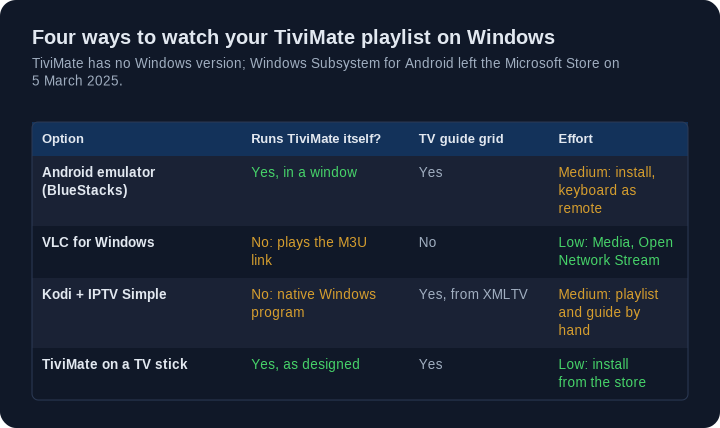
They split into two kinds. Two keep TiviMate itself: an emulator on the PC, or TiviMate on a TV device. Two replace it with a Windows program that reads the same playlist. Your playlist belongs to your IPTV provider, not to the app, so the same login works in all of them.
1. An Android emulator: the real TiviMate on the PC
An emulator is a program that imitates an Android device inside Windows, so Android apps run in a window. BlueStacks is the best known. Its support page for BlueStacks 5 lists a minimum of Windows 7 or later, an Intel or AMD processor, 4 GB of RAM, 5 GB of free disk space and administrator rights on the PC, and recommends Windows 10 or later, 8 GB of RAM or more, an SSD, and virtualisation switched on.
This is the only way to get TiviMate’s own screens, guide and settings on Windows. The costs are real: video is decoded inside an imitation device, so a modest laptop works harder than a streaming stick would; the app expects a remote, so you steer it with the keyboard; and the developer does not document emulators at all.
2. VLC: the quickest way to watch
VLC for Windows is a free, open-source player from VideoLAN that plays “various streaming protocols”. It needs no emulator. VLC’s user documentation gives the method: click Media on the menu bar, select Open Network Stream, enter the network address and click Play. Paste your provider’s M3U playlist link there and the channel list loads as a playlist. There is no TV guide grid, but for watching one channel at a desk it is the shortest path.
3. Kodi with IPTV Simple: a guide without emulation
Kodi is a free media centre for Windows. Its IPTV Simple PVR add-on takes an M3U playlist and an XMLTV guide, and its documentation says it supports catch-up streams “if supported by the IPTV provider”. Set up once, it gives you a channel list and a programme guide in a native Windows program, which is the closest native experience to TiviMate’s layout. Setup takes longer than VLC because the playlist and guide addresses go into the add-on’s settings by hand.
4. TiviMate on a TV device: skip the PC
If the PC is only a route to the television, it is the long way round. TiviMate installs from Google Play on Android TV and Google TV devices, and from the developer’s website on a Fire TV, so a streaming stick in the TV’s HDMI port gives you the real app, with a remote, as it was designed.
Which TiviMate Windows alternative should you choose?
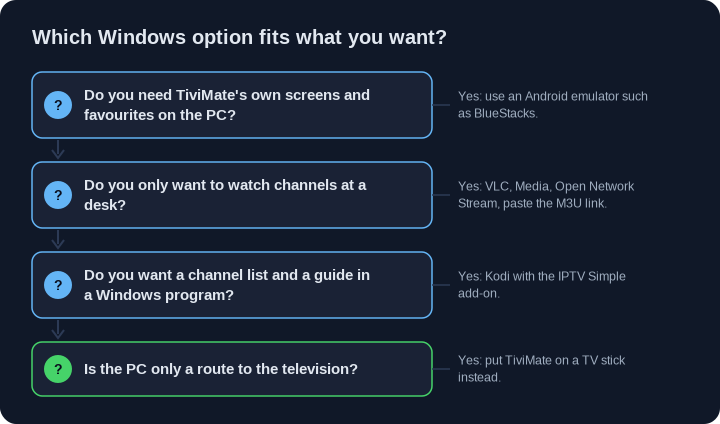
- You want TiviMate’s exact screens and favourites on the PC: the emulator, with the drawbacks above.
- You just want to watch at a desk: VLC, set up in two minutes.
- You want a channel list and a guide in a normal Windows program: Kodi with IPTV Simple.
- You want it on the television: a TV device running TiviMate.
How do you set up TiviMate in BlueStacks?
- Download BlueStacks from its developer’s website and install it. Decline any extra software the installer offers.
- If it reports that virtualisation is off, switch it on in your PC’s BIOS or UEFI settings, as BlueStacks recommends.
- Start BlueStacks and sign in to Google Play when it asks.
- Search the Play Store for TiviMate IPTV Player by Armobsoft FZE. If it is not offered, because the store sees a phone or tablet rather than a TV, open the emulator’s browser and get it from the developer’s website, tivimate.com. Never use a copy from anywhere else.
- Open TiviMate and add your playlist as Xtream Codes or M3U, exactly as on a TV.
- Set the emulator window to a landscape resolution such as 1920 by 1080 so the guide lays out as on a television.
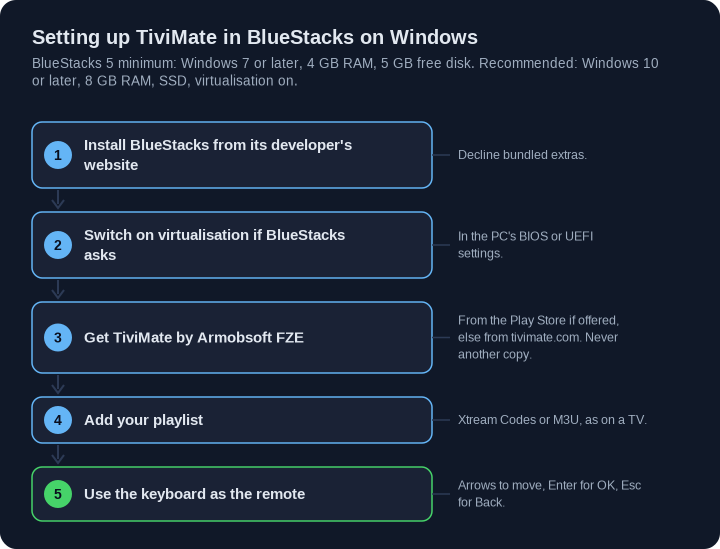
Use the keyboard rather than the mouse: the arrow keys work as the remote’s direction pad, Enter as OK and Esc as Back in most emulators. A mouse click counts as a touch, and the listing warns the app is not built for touch. If you bought Premium, note that the emulator may count as one of the devices it is activated on; our guide to whether TiviMate is free explains what Premium covers and how the purchase works without Google Play. A step-by-step version with troubleshooting is in the Windows PC guide for TiviMate on tivimate.me.
Can VLC also help inside TiviMate?
Yes, on the Android side. VLC for Android can act as TiviMate’s external player for channels that misbehave in the built-in player, on a TV device or inside an emulator. Our guide to changing the external player in TiviMate shows how, and what you give up when you do.
What about TiviMate Pro or 8K Pro for PC?
Neither is a Windows program from the developer. TiviMate Pro is mostly a nickname for Premium, and TiviMate 8K Pro is a different Android app handed out by IPTV sellers. Our guide on what TiviMate Pro really means explains both names.
Which IPTV login works on Windows?
Any provider’s Xtream Codes login or M3U link works in every option above, because the players only read the playlist. Tivimate, the company behind this site, is an independent IPTV subscription for the UK and not the developer of the TiviMate app. Our service works on Firestick, Android TV, Apple TV, Smart TVs, iPhone, Windows and MAG boxes, and plans run on 1 to 4 devices, so a PC can share a plan with the TV. You can test it with the free 24-hour trial on your PC or TV, no card needed, or see the Tivimate plans from £15.
Frequently asked questions
Does TiviMate work on Windows?
Not directly. TiviMate is an Android app, and its developer offers no Windows version. It runs on a Windows PC only inside an Android emulator such as BlueStacks, and even then the developer does not document or support that setup.
Can you use TiviMate on a PC without an emulator?
No. Since Microsoft withdrew Windows Subsystem for Android from the Microsoft Store in March 2025, Windows cannot run Android apps by itself. Use a Windows player such as VLC or Kodi with the same playlist, or run TiviMate on a TV device instead.
How do you install TiviMate on Windows 10?
Install an Android emulator such as BlueStacks from its developer's website, check that virtualisation is switched on, then install TiviMate inside the emulator, from its Play Store if it is listed there or from the developer's website, tivimate.com. Add your playlist as you would on a TV.