
TiviMate has its own built-in player, and for most channels it is the right one. An external player is a second video app that TiviMate hands the stream to instead. People use one when a channel plays with no sound, a black picture or subtitles that will not show, or when they prefer another app’s controls for films. TiviMate’s developer publishes no manual, so the menu names below come from third-party settings guides and may differ slightly in your version.
How do you change the external player in TiviMate?
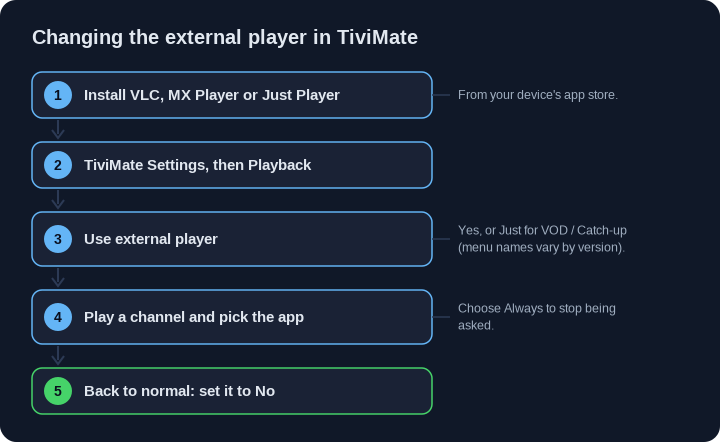
- Install the player first. Get VLC, MX Player or Just Player from your device’s app store. Pick the version built for your TV device where there is one.
- Open TiviMate’s settings and go to Playback.
- Set Use external player. The IPTV Help Center settings guide gives two choices besides off: Yes, for everything, or Just for VOD / Catch-up, which keeps live TV in TiviMate and sends films, series and catch-up to the other app.
- Play a channel. Android asks which app to use. Choose the player, and select Always if you want to stop being asked.
- Grant permissions the first time the player opens, or it may not start the stream.
Some guides also describe choosing a player for a single channel or group from that item’s options, which lets you keep TiviMate’s player for everything else. If your version has it, that is usually the better choice.
Which is the best external player for TiviMate?
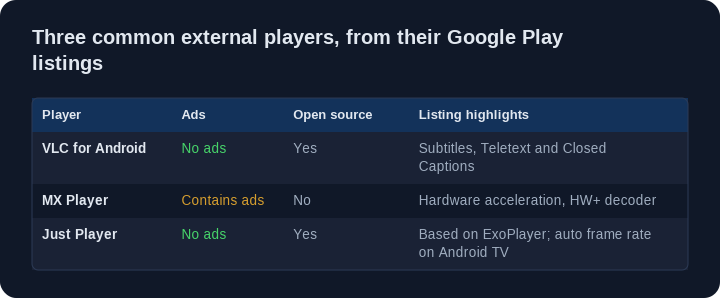
There is no single best one; each of the common choices does a different job. This is what each app’s own Google Play listing says, read on 27 November 2026:
- VLC for Android. Free and open source; the listing says it “has no ads” and supports subtitles, Teletext and Closed Captions. A sensible first choice for channels whose subtitles or audio tracks will not show.
- MX Player. Its listing leads with hardware acceleration and an HW+ decoder, and Google Play marks it “Contains ads”.
- Just Player. “Android video player based on the ExoPlayer library”, open source, with “no ads, tracking or excessive permissions” and auto frame rate matching on Android TV boxes.
If a channel fails in TiviMate with a decoder or codec message, trying it in one of these is a quick test: if it plays there, the problem was the decoder, as explained in our TiviMate data source exception guide.
What stops working with an external player?
Once the stream leaves TiviMate, TiviMate is no longer playing it. Third-party setup guides report that built-in features such as recording and multiview do not apply to channels sent to another app, and that the guide overlay and quick channel switching are interrupted, because each channel change hands over to the other app again. Your remote’s buttons also follow the other player’s rules while it is open.
That is why the option for films and catch-up only is popular: live TV keeps TiviMate’s guide and zapping, and on-demand titles get the other player’s controls. If you record programmes, keep those channels on the built-in player; our guide on how to record on TiviMate explains what recording needs.
How do you switch back to TiviMate’s own player?
Go back to Settings, Playback and set Use external player to No. If you chose Always in Android’s app picker, Android keeps sending video to that app; clear it under the device’s app settings by opening the external player, then its default-app or “open by default” section, and clearing the defaults.
When will an external player not help?
When the problem is the stream, not the player. A login refused with 401 or 403, a provider code such as 458 or a server that is down will fail in every player, because the external app receives the same stream from the same server. See TiviMate error 401, 403 and 429 and TiviMate error 458 for those.
Tivimate, the company behind this site, is an independent IPTV subscription for the UK, not the TiviMate app. Our Xtream Codes login works in TiviMate’s own player and in the external players above. If a channel of ours only plays in an external player, tell Ryan on WhatsApp which one, so we can check the stream. New here? Test it free for 24 hours in TiviMate before choosing a plan.
Frequently asked questions
How do I get subtitles on TiviMate?
Subtitles exist only if the channel or film carries them. During playback, open TiviMate's player options and look for the subtitle or audio track choice; menu names vary by version. If a stream's subtitles will not show, an external player can help: VLC's Google Play listing says it supports subtitles, Teletext and Closed Captions.