
TiviMate shows nothing until you give it a playlist. The developer’s listing is direct about it: “To watch anything, you must add your own playlists.” This guide covers the three types it accepts, which to choose, how to save yourself typing a long address with a remote, and the handful of mistakes behind nearly every failed login. Menu names are the ones in common use, since the developer publishes no manual. Tivimate, the company behind this site, sells IPTV subscriptions and is not the developer of the app.
What should your provider have sent you?
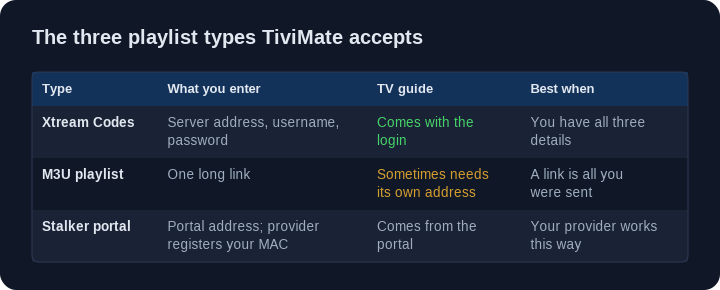
- Xtream Codes details: a server address that starts with http:// or https://, often ending in a port such as :8080, plus a username and a password.
- An M3U link: one long web address with the same username and password written inside it.
- A Stalker portal: a portal address. This type is mostly used by services built for MAG boxes.
Many providers send both Xtream Codes details and an M3U link. If you have the choice, use Xtream Codes.
How do you add a playlist to TiviMate with Xtream Codes?
- On first launch choose Add playlist. Later, open the settings, then the playlists section, then Add playlist.
- Choose Xtream Codes.
- Type the server address in full, with http:// or https:// and the port if one was given.
- Type the username and password. Both are case-sensitive.
- Leave on-demand content switched on if you want films and series from the same login.
- Select Next. TiviMate checks the login and processes the channel list.
- Name the playlist, then finish.
The TV guide address comes with the login, so there is nothing more to add. When people ask for “TiviMate codes”, these three fields are usually what they mean, and they come from your provider, not from TiviMate.
How do you add an M3U playlist for TiviMate?
- Open Add playlist and choose M3U playlist.
- Enter the full link. It is long, so see the tips below on pasting it from a phone.
- Select Next and wait for the list to load.
- If TiviMate asks for a guide (EPG) address, enter the one your provider gave you. Some M3U files carry it already.
- Name the playlist and finish.
An M3U file saved on the device also works, but a saved file never updates, so channels that move stop working until you replace it. A web link updates itself.
Adding a Stalker portal
Choose Stalker portal and enter the portal address. TiviMate shows the device identifier (a MAC address) it will use; your provider has to register that identifier on your account before any channels appear. The guide then arrives with the channels.
Avoid typing long addresses with the remote
- Use the TV maker’s phone app. The Amazon Fire TV app and the Google TV app both put a keyboard on your phone that types into the field on the television, so you can paste the link.
- Plug in a keyboard. A Bluetooth keyboard pairs with Fire TV and Android TV devices, and a USB keyboard works on boxes with a USB port.
- Check before you blame the app. If the M3U link opens or downloads a small text file in a web browser on a computer, the link is right and the problem is the typing on the TV.
Never post either login anywhere public: both contain your username and password.
More than one playlist in TiviMate
Independent guides such as FireStickTricks list one playlist as the free limit, with more than one as a Premium feature. With Premium, each playlist keeps its own groups and favourites and you switch between them in the playlist settings. A second playlist is also the cleanest way to test a new provider without touching the one you use every day. Our page on buying TiviMate Premium explains how to buy it on each device.
Why does a TiviMate playlist fail to load?
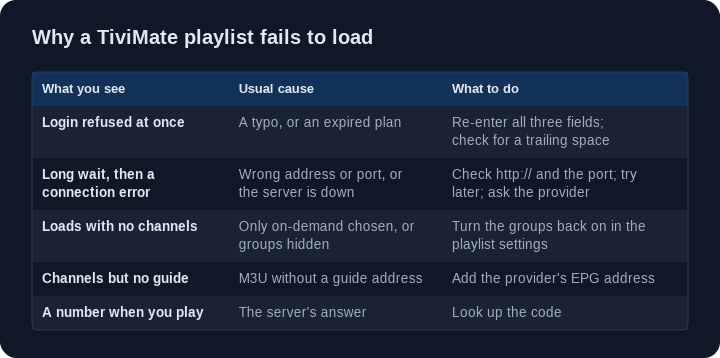
If the login is refused with a number, the server is answering: our guide to TiviMate error 401, 403 and 429 explains each refusal, and if you are unsure whether the login or the app is at fault, see which TiviMate login goes where.
After the playlist loads
- Hide what you never watch. Switch off whole groups in the playlist’s settings so the list is quicker to browse.
- Build favourites. A long press on a channel usually offers to add it to favourites.
- Set an update interval so channel changes are picked up without you noticing.
Those and the other options worth a look are in our TiviMate settings guide.
Adding a Tivimate login
If you subscribe to Tivimate, an independent IPTV subscription for the UK and not the TiviMate app, your login arrives on WhatsApp after payment as a server address, username and password, ready for the Xtream Codes steps above; an M3U link or portal is available on request. If you do not have a provider yet, the free 24-hour Tivimate trial gives you a working login to practise with, no card needed, and plans start at £15 a month.
Frequently asked questions
How do you add Xtream Codes to TiviMate?
Open the Add playlist screen, choose Xtream Codes, then type the server address, username and password exactly as your provider sent them, including http:// and any port number. Select Next, let TiviMate check the login and load the channels, then name the playlist and finish.
How do you update a playlist on TiviMate?
Open the settings, go to the playlists section, select the playlist and choose the update option. The same screen usually has an automatic update interval, so the list refreshes on its own. Updating keeps your favourites in place.
How do you change the playlist on TiviMate?
If your provider sent new details, edit the existing playlist rather than deleting it, so your favourites and hidden groups stay attached: select it in the playlists section and change the server, username or password. To switch between two different playlists, you need Premium, which allows more than one.
How do you get a playlist for TiviMate?
From an IPTV provider. TiviMate contains no channels, and its developer sells none. When you subscribe, the provider sends Xtream Codes details, an M3U link or a portal address, and that is what you add. Be wary of free lists passed around online: you cannot tell who runs them or what they carry.