
TiviMate has a long settings menu, and most of it is fine left alone. This guide picks out the options that make a difference for most UK viewers on a Fire TV Stick or a Google TV box, explains what each one does, and says when to leave it. TiviMate’s developer, Armobsoft FZE, publishes no settings manual, so the menu names below are those used in a September 2026 TiviMate settings guide from IPTV Help Center; your version may word them differently. The suggested values are that guide’s and are a starting point, not results we measured. Tivimate, the company behind this site, sells an IPTV subscription, not the app.
The best TiviMate settings to change first
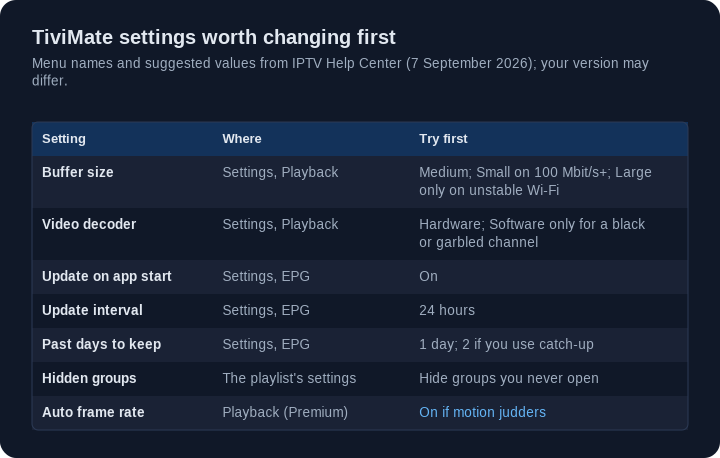
Change one thing, then watch the same channel for a few minutes. If it helps, keep it; if it changes nothing, put it back. Guides disagree on values, and the right answer depends on your device and your line.
TiviMate playback settings
Buffer size
The buffer is how much video TiviMate holds before it shows the picture. IPTV Help Center lists the choices as None or Small, Medium, and Large or Very Large under Settings, Playback, and suggests Medium for most home Wi-Fi and Ethernet, Small on fast lines of 100 Mbit/s or more, and Large only on unstable Wi-Fi, warning that Very Large adds three to five seconds to every channel change. A bigger buffer rides out short dips; it cannot fix a server that is too slow.
Video and audio decoder
Hardware decoding uses the device’s video chip and is the usual default. Switch a channel to Software only if it shows a black or garbled picture, or sound without picture; a software decoder works the processor harder. Decoder errors are explained in our guide to the TiviMate data source and codec exceptions.
Auto frame rate
Auto frame rate asks the device to switch the TV’s refresh rate to match the stream, which can remove a regular judder on camera pans and scrolling text, often noticed in football. IPTV Help Center marks it as a Premium feature. It needs a device and TV that support switching, and you may see a second of black when the rate changes; turn it off if that bothers you more than the judder.
External player
Use external player hands playback to another app such as VLC, for everything or just for films and catch-up. It is useful for odd file types, and it costs you TiviMate’s own player features while it is on. Our guide on changing the external player in TiviMate covers the trade-offs.
TV guide (EPG) settings
- Update on app start: on, so the guide refreshes each time you open TiviMate.
- Update interval: IPTV Help Center suggests every 24 hours, saying more often wastes data and processing.
- Past days to keep: one day is enough for most; keep two if you use catch-up. The same guide says five to seven days slows the grid.
- Clear EPG: use it when programmes show “No information” or descriptions sit against the wrong times.
An M3U playlist may need a guide address added by hand; Xtream Codes logins bring it with them, as our TiviMate playlist setup explains.
Playlist and channel list
- Hide groups. A large playlist can hold thousands of channels. Switching off the groups you never open makes the list and the guide quicker to move through.
- Favourites. The Play listing names favourite channels as a feature. A favourites group near the top saves the most remote presses.
- Playlist updates. Providers rename and move channels, and a regular update picks that up.
Start-up and display
If the device is mainly a TV box, look for options to open the last channel on start-up and to launch TiviMate when the device boots, so it behaves more like a set-top box. Larger text reads better across a room, at the cost of fewer rows in the guide. If the guide scrolls slowly on an older Fire TV Stick, try turning channel logos off. These names are common usage rather than the developer’s wording.
TiviMate Premium settings
Some options only appear, or only work, with Premium. Guides such as FireStickTricks and IPTV Help Center put these behind it: more than one playlist, catch-up, recording, multiview, parental controls, auto frame rate and backup. If an option shows a lock, that is why. Our TiviMate Premium features and price guide sets out what the upgrade unlocks and where to buy it, and recording options are covered in how to record on TiviMate.
Parental controls are named in the Play listing. Lock whole groups rather than single channels, because a playlist update can add channels to a group, and test the lock on a channel you care about.
Save your setup once it is right
With Premium, use the backup option (IPTV Help Center places it under Settings, General, Backup data) and keep the file somewhere other than the stick. A reset or a replacement device otherwise means doing it all again. Without Premium, note the few values you changed and keep your login details safe.
When settings are not the answer
A setting cannot fix a provider’s stream or a channel your plan does not carry. If nothing plays, start with what to do when TiviMate is not working. If you are choosing a provider, Tivimate is an independent IPTV subscription for the UK, not the TiviMate app: you get an Xtream Codes login that works in TiviMate, and you can try it with the no-card Tivimate trial before paying, with plans from £15.
Frequently asked questions
How do you configure TiviMate?
Add your playlist first, because nothing else matters until channels load. Then go through four areas once: playback (buffer and decoder), the TV guide (update on start and an update interval), the playlist (hide groups you never watch) and start-up. Change one setting at a time and watch the same channel before and after.
How do you hide channels on TiviMate?
Hide whole groups rather than single channels. In the playlist's settings, look for the list of groups and switch off the ones you never open, such as other countries. A playlist update can add new channels to a group, so hiding the group keeps them hidden too. Menu names vary by version.
How do you get subtitles on TiviMate?
Subtitles exist only if the channel or film carries them. While it plays, open the player options and look for the subtitle or audio track choice, and pick one. If a film's subtitles will not show in TiviMate, setting an external player such as VLC for films only is a common workaround.