When TiviMate freezes, crashes or will not load, the device it runs on offers three buttons that sound alike: Force stop, Clear cache and Clear data. They are not alike. One restarts the app, one throws away temporary files, and one erases your whole setup. This guide shows where each lives on a Fire TV Stick and on Google TV, the order to try them in, and how to restart or reboot properly. The device menus come from Amazon’s and Google’s own help pages; TiviMate’s developer, Armobsoft FZE, publishes none. Tivimate, which runs this site, sells an IPTV subscription and is not the developer.
Force stop, clear cache or clear data
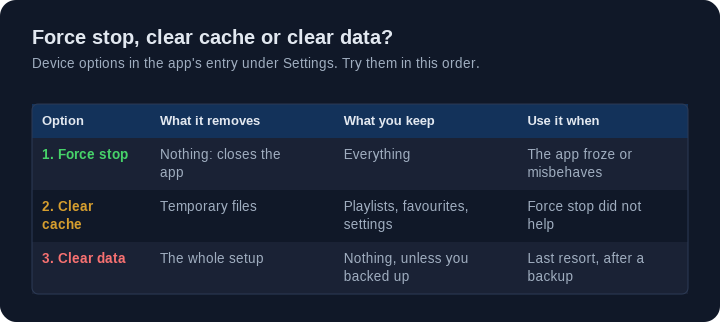
Work down the table and stop as soon as the problem goes. Most freezes end at Force stop. Clearing the cache helps when the app misbehaves every time you open it. Clear data is for an app that will not start at all, and only after you have saved a backup file.
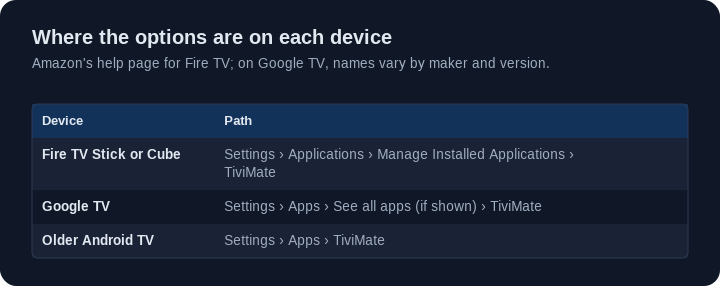
On a Fire TV Stick or Cube
These steps are from Amazon’s help page on clearing app data and cache.
- Press Home and open Settings.
- Choose Applications, then Manage Installed Applications.
- Select TiviMate.
- Choose Force stop first. Open TiviMate again and see whether the problem has gone.
- If not, come back and choose Clear cache.
The same screen also offers “Clear all Application Caches”, which empties every app’s cache at once. Amazon adds that when storage is low, Fire TV clears the cache of apps unused for more than 30 days by itself. A stick that is nearly full struggles in general, so uninstalling apps you never open does more than any cache button.
On Google TV and Android TV
- Open Settings, from the gear or your profile icon at the top right.
- Choose Apps, then See all apps if TiviMate is not listed straight away.
- Select TiviMate and choose Force stop, then reopen the app.
- If that does not help, return and choose Clear cache.
Sony, TCL, Philips and the Google TV Streamer word these menus slightly differently, so look for the same three options rather than the exact path.
Before you press Clear data
Clear data returns TiviMate to the state it was in when first installed: no playlists, no favourites, no hidden groups, no settings. Premium may need activating again, and the app warns about the limit of 5 devices for Premium if you are near it. So save your setup first. TiviMate’s own Back up data option writes everything to one file, which you then copy off the device; our TiviMate backup and restore guide covers each step. After clearing, choose Restore data and the setup comes back.
The app’s own clean-up options
TiviMate has two narrower options of its own, named in its interface as “Clear logos cache” and “Clear EPG”. The first throws away stored channel logos, useful when logos show the wrong picture or none. The second deletes the stored TV guide, useful when programmes sit against the wrong times; the guide then downloads again. Neither touches your playlists. Guide problems in general are covered in our TiviMate EPG guide.
What each option removes and what it keeps
Six options can look like “a reset”. This is what each one takes away, from the lightest to the heaviest:
| Option | Removes | Keeps |
|---|---|---|
| Force stop | Nothing; it only closes the app | Everything |
| Clear logos cache (in TiviMate) | Stored channel logos | Playlists, guide, settings |
| Clear EPG (in TiviMate) | The stored TV guide, until it downloads again | Playlists, favourites, settings |
| Clear cache (device settings) | Temporary files the app can rebuild | Playlists, favourites, settings |
| Clear data (device settings) | The whole setup: playlists, favourites, hidden groups, settings | The app itself, and a backup file saved outside it |
| Uninstall | The app and its data | Only a backup file saved outside the app |
A backup file is only safe from the last two if it was copied somewhere other than the app’s own storage, such as a USB drive or a computer.
Signs that clearing the cache will not help
Some faults look like a misbehaving app but start somewhere a cache button cannot reach:
- A three-digit number on screen. That is an answer from a server, and it comes back after any clear-out.
- Other apps are slow too. The device or the network is the problem; reboot the device and the router instead.
- The same channel fails on a second device. The stream or the account is at fault, not this copy of TiviMate.
- The fault started on a set date. An expired plan or a changed server address looks the same before and after a clear.
If any of these fits, keep your setup intact and work on the cause instead. You know a clear-out worked when the app opens cleanly, the channel list loads and the fault does not return over the next few uses.
Restarting the app and rebooting the device
Restarting TiviMate means closing it fully and opening it again. Pressing Home does not do that: the app keeps running in the background. Use Force stop, as above. After some setting changes TiviMate asks itself: “Restart app?”, warning that “You may need to manually start it.” If the screen goes back to the home page, open TiviMate again.
Rebooting means restarting the whole device, which clears its memory and network connection too:
- Fire TV: Settings, My Fire TV, Restart, according to Amazon’s restart help. Holding Play/Pause and Select together for 3 to 5 seconds does the same.
- Google TV Streamer or Chromecast with Google TV: Settings, System, Restart, according to Google’s reboot help, or unplug the power for one minute. Unplugging only the HDMI cable does not reboot it.
When none of this helps
If the app is healthy but channels still fail, the fault is usually the login, the provider’s server or the connection. If the screen shows a number, our list of TiviMate error codes says who sent it. Our guide to finding out why TiviMate is not working separates those causes, and our TiviMate buffering fix handles stalls. If an update caused it, check you have the current TiviMate version from the developer.
Tivimate is an independent IPTV subscription for the UK, not the TiviMate app, and its support team answers setup questions on WhatsApp. You can watch free for 24 hours before paying, no card needed, or see plans from £15.
Frequently asked questions
How do you restart TiviMate?
Force-stop it, then open it again. On a Fire TV, go to Settings, Applications, Manage Installed Applications, TiviMate, Force stop. On Google TV, go to Settings, Apps, TiviMate, Force stop. Pressing Home only sends the app to the background, so it is not a restart. When TiviMate itself asks to restart after a change, it may not reopen on its own; start it from the home screen.
How do you reboot TiviMate?
Rebooting means restarting the device TiviMate runs on, not just the app. On a Fire TV Stick, open Settings, My Fire TV, Restart, or hold Play/Pause and Select together for 3 to 5 seconds, as Amazon's help describes. On a Google TV Streamer, open Settings, System, Restart. Then open TiviMate again and let the channels and the guide load.
How do you reset TiviMate on a Firestick?
Resetting the app means Clear data: Settings, Applications, Manage Installed Applications, TiviMate, Clear data. It deletes your playlists, favourites and settings, so save a backup file in TiviMate first and copy it off the stick. After the reset, add your playlist again or choose Restore data to bring the old setup back.