People look up the TiviMate latest version for two reasons: to see whether their copy is current, and to find a safe way to update it. Both answers come from the developer, Armobsoft FZE, and nowhere else. We read the Google Play listing and the developer’s own download at tivimate.com on 27 November 2026, and the version below is what both showed that day. Tivimate, which runs this site, sells an IPTV subscription and is not the developer of the app.
The current version, checked on 27 November 2026
- Version: 5.3.3, on the UK Google Play listing and in the developer’s direct file.
- Date: Google Play shows “Updated on 22 Jun 2026”; the direct file on the developer’s server carries the same date.
- Requires: Android 6.0 or later, according to the Play listing.
- Developer: Armobsoft FZE, for both the Play app and the direct file.
The developer publishes no changelog page, so we give no dates for older releases. Any site that lists a “newer” TiviMate than the one on Google Play and tivimate.com is offering something the developer has not released.
What changed in 5.3.3
The release notes on Google Play are short. In full, they read:
- “Fixed channel sorting in “All channels” group”
- “Fixed missing catch-up for some m3u playlists”
- “Fixes and improvements”
So this is a maintenance release, not a new set of features. If your channel order in All channels looked wrong, or catch-up was missing from an M3U playlist, it is worth updating. If a channel misbehaves straight after an update, try the same channel in another player before blaming the app. Our checks for when TiviMate stops working help tell the app, the login and the server apart.
How to check which version you have
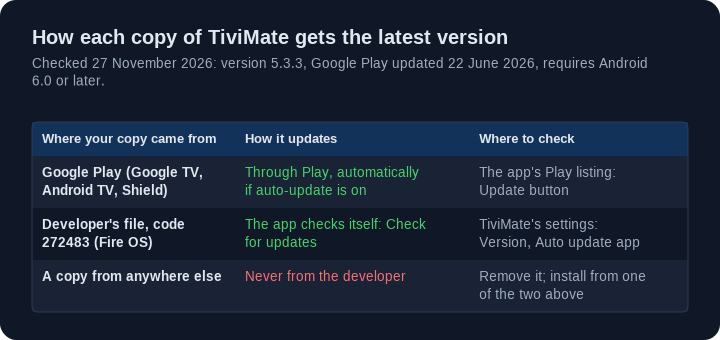
The app’s settings include an entry labelled Version. The developer publishes no menu map, so its exact position can differ between releases. On a Google TV or Android TV device you can also open the app’s entry in the device’s own Settings, under Apps, where the version number is shown. If the number is lower than 5.3.3, an update is waiting.
Updating a Google Play copy
This covers Google TV and Android TV sets, the Google TV Streamer and the NVIDIA Shield. Play updates the app like any other when automatic updates are on, so most people never need to do anything. To check by hand:
- Search for TiviMate from the home screen and open TiviMate IPTV Player.
- Check the developer reads Armobsoft FZE.
- Choose Update if it is offered. If you only see Open, you already have the version Play is serving.
If the listing does not appear at all, the device may not be certified for Google Play; our TiviMate guide for Google TV sets and streamers covers that case.
Updating the developer’s copy on a Fire TV Stick
TiviMate is not in the Amazon Appstore, so a Fire TV Stick or Cube running Fire OS carries the developer’s direct copy. tivimate.com says of that copy: “This version has fewer restrictions and checks for updates.” Inside the app the wording is “Check for updates” and “Auto update app”, and when a release is out it says “New version %s is available”, with the number in place of %s.
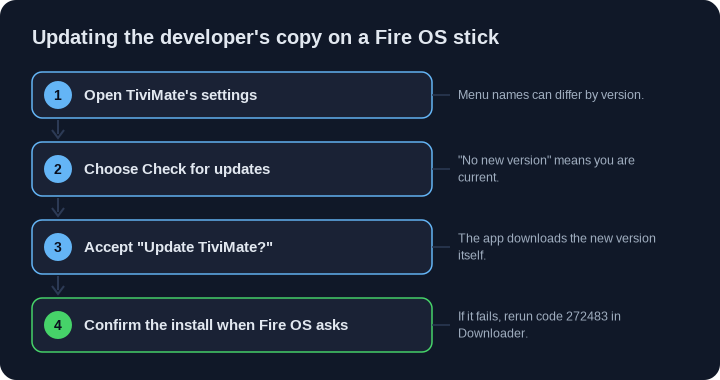
If the app reports “Failed to install apk-file. Try to update manually.”, do what it says: open Downloader, enter the developer’s code 272483 and install over the existing app. Our guide to the TiviMate Downloader code walks through each screen, including the unknown-apps permission. Sticks that run Amazon’s Vega OS cannot install TiviMate at all, old version or new.
If the update will not install
The app’s own messages point to the next step:
- “No new version”. You already have the newest release the developer offers. If the number is 5.3.3, nothing is waiting.
- The download stalls at “Downloading the new version”. The developer’s file was about 21 MB on 28 November 2026, and installing it needs room on top of that. Free some storage by uninstalling apps you never use, then try again.
- Fire OS refuses the install. TiviMate itself needs permission to install apps before it can update itself, separate from the permission Downloader was given. Fire OS normally asks when the update starts; allow it and run Check for updates again.
- “Failed to install apk-file. Try to update manually.” Use Downloader and the code 272483, as described above.
If Auto update app is switched on, the developer’s copy looks for new releases itself, so you rarely need to start a check by hand. On a Play copy, a stuck update usually clears after a device restart.
Updating the app is not updating the playlist
The two are easy to confuse. An app update replaces TiviMate with a newer release from the developer. A playlist update downloads a fresh channel list from your provider, and the app has its own options for it, named “Update playlist”, “Update on app start” and “Update interval, hours”. If channels are missing or a new one has not appeared, it is the playlist that needs updating; our answer on updating a playlist in TiviMate covers that. If the app itself crashes, looks different from the guides or lacks an option others describe, check the version instead.
Where not to get an update
Only two sources carry the real app: Google Play and the developer’s own file linked from tivimate.com. Copies on mirror sites, in shared folders or behind a seller’s Downloader code come from someone else. They may be old, they may be altered, and they never receive the developer’s updates. Files that claim to include Premium are altered by definition. If you have one of these, uninstall it and install from one of the two official routes, using our guide to the devices that run TiviMate.
The same applies to an older number such as TiviMate 5.1. It is a real release line, earlier than 5.3.3, and archive sites list builds from 5.1.0 to 5.1.6, the last from January 2025. The developer itself offers only the current version and publishes no archive, so an old copy can only come from someone else, and it misses every fix since. If a newer version misbehaves, report it to the developer at support@tivimate.com and keep TiviMate updates switched on rather than going back.
Before a big change such as a reinstall, save a backup file and copy it off the device, as set out in our TiviMate backup and restore guide. An ordinary update keeps your data; an uninstall does not.
After updating
Open the app, let the channel list and the guide refresh, and try a few channels from different groups. If the guide is blank, run its update once. If something broke that worked before, clearing the app’s cache is the next step, and our steps to clear the TiviMate cache show where that option lives on each device and why Clear data is a last resort.
An up-to-date player still needs a playlist. Tivimate is an independent IPTV subscription for the UK, not the TiviMate app, and its Xtream Codes login works in the current version. Try it free for 24 hours, with no card, or see plans from £15.
Frequently asked questions
How do you update TiviMate?
It depends where your copy came from. A Google Play copy updates through Play: open its listing and choose Update, or leave automatic updates on. The developer's direct copy, the one on a Fire TV Stick, updates itself from Check for updates in TiviMate's settings. An ordinary update keeps your playlists, favourites and settings.
How do you update TiviMate on a Firestick?
Open TiviMate's settings and choose Check for updates. If a release is out, the app offers to download it and Fire OS asks you to confirm the install. If that fails with a message to update manually, open Downloader, enter the developer's code 272483 and install over the existing app. Vega OS sticks cannot run TiviMate at all.
How do you update TiviMate on an NVIDIA Shield?
The Shield runs Android TV with Google Play, so TiviMate updates through Play like any other app when automatic updates are on. To check by hand, open the Play Store, find TiviMate IPTV Player from Armobsoft FZE and choose Update if it is offered. If you only see Open, you already have the version Play is serving.