A smart TV is only as smart as the system inside it, and TiviMate is an Android app. Its developer, Armobsoft FZE, says on its Google Play listing that the app “is designed for Android TV and remote control navigation”, and its website, tivimate.com, offers exactly two ways to get it: Google Play, or its own file through the Downloader app. So the question for any television is simple: does it run Android in one of those two forms? This guide answers that for the brands sold in the UK. Tivimate, which runs this site, sells an IPTV subscription and is not the developer of the app.
Which TV systems can run it
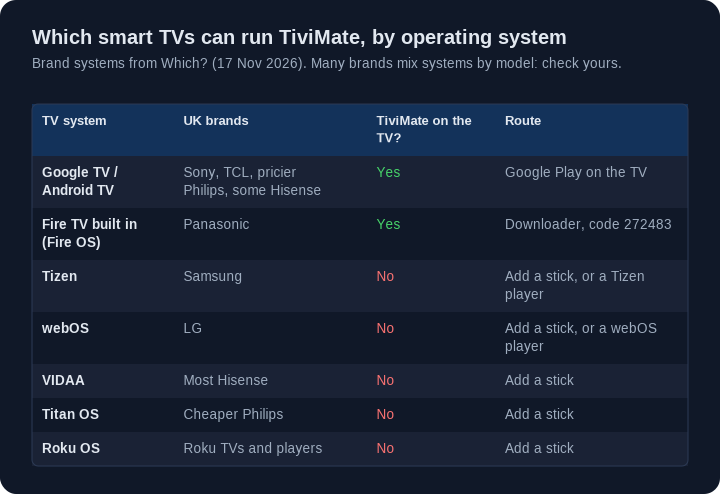
Brand by brand, the systems below are from Which?’s smart TV guide, dated 17 November 2026. Several makers use more than one system across their range, so treat the brand as a clue and the model’s own settings as the answer.
How to find out which system your TV runs
You rarely need the manual. Try these in order and stop at the first clear answer.
- The home screen. A row headed Google TV, or a Google Play Store icon, means Google’s system. A Fire TV home screen with the Amazon Appstore is Fire TV. Samsung’s Smart Hub, LG’s launcher bar and the VIDAA or Titan OS home screens each carry their own names.
- The About screen. Most sets name their system and software version in Settings, under an About entry, often inside a System or Device section. On TVs with Fire TV built in, AFTVnews gives the path as Settings, Device & Software, About.
- The model number. It is on a sticker on the back of the set and usually in the About screen. Search it with the maker’s name: the maker’s spec sheet lists the operating system, and it settles the split ranges from Philips and Hisense.
If none of these mentions Google TV, Android TV or Fire TV, assume TiviMate cannot go on the set and skip to the stick option below.
Sony, TCL and other Google TV sets
Which? says Sony’s smart platform “is powered by Google” and that “TCL uses Google for its operating system”. On these sets, TiviMate is an ordinary Play Store install: open the Apps area, search for TiviMate, check that the developer reads Armobsoft FZE, and choose Install. It then updates itself through Play. The full walk-through, including what to do when Play does not list the app, is in our TiviMate guide for Google TV sets and streamers.
The app needs Android 6.0 or later, which any recent Google TV set meets. A very old Android TV from the mid-2010s is worth checking under Settings, About before you start.
Philips and Hisense: check the model
These two brands split their ranges. Which? says cheaper Philips models get Philips’ own Titan OS while more expensive ones get Google’s system, and that Hisense uses VIDAA, a system of its own. Some Hisense models sold in the UK run Google TV instead. Titan OS and VIDAA cannot install Android apps; the Google TV models of either brand can, from Google Play. Philips’ own explainer on Titan OS calls it “European, independent, Linux-based” and says its apps are web-based, running without local installation. That rules out TiviMate on Titan OS entirely: there is no Android underneath and no way to install an app file. The quickest test is the home screen: if you can open the Google Play Store, TiviMate will install. If you cannot find it, the set runs something else.
Panasonic and other TVs with Fire TV built in
Which? reports that Panasonic now uses Amazon’s Fire TV. AFTVnews lists smart TVs with Fire TV built in as running Fire OS, which is Android-based, so they take TiviMate the same way as a Fire TV Stick: enable apps from unknown sources, install Downloader from the Amazon Appstore, enter the developer’s code 272483 and install. To confirm, open Settings, Device & Software, About: AFTVnews says a Vega OS device shows its software as “OS” with a version starting with 1, while Fire OS is named as such. The screens are the same as in our steps for code 272483 on a Fire TV Stick.
Samsung, LG, Roku and the rest
- Samsung: Tizen. It installs apps from Samsung’s own store only, and there is no TiviMate there or anywhere outside Android.
- LG: webOS, likewise closed to Android apps.
- Hisense on VIDAA and Philips on Titan OS: their own systems, with no Google Play.
- Roku TVs and Roku sticks: Roku’s own system, with no Android apps.
No setting, app or trick changes that. Anything offering a TiviMate download for these TVs is not from the developer. Roku is the question we see most, so to be plain: how to get TiviMate on Roku has no answer on the Roku itself, because the developer publishes nothing for Roku’s store and a Roku cannot install Android apps. You keep the Roku for its own apps and add an Android device for TiviMate. If you already own one of these sets, you have two honest routes, below.
The usual fix: a stick in a spare HDMI port
A Google TV or Fire OS streaming stick turns any TV with an HDMI port into one that runs TiviMate. You switch to that HDMI input and use the stick’s remote. Two cautions apply. First, Amazon’s newest Fire TV Sticks run Vega OS and cannot install TiviMate; the Fire TV Stick 4K Max and the Fire TV Cube still run Fire OS. Second, a stick tucked behind a wall-mounted TV may get a weak Wi-Fi signal, so think about where it sits. Our guide to choosing a device for TiviMate compares the types, and the full list, model by model with sources, is our TiviMate device compatibility table.
Using one remote for the TV and the stick
A stick adds a second remote to the coffee table, but often it does not have to. Most TVs and sticks support HDMI-CEC, a standard that lets devices on the HDMI cable pass on button presses. Makers give it their own names: Anynet+ on Samsung, SIMPLINK on LG and BRAVIA Sync on Sony, for example. With it switched on in the TV’s settings, the TV’s own remote can usually move around TiviMate on the stick, and the stick’s remote can turn the TV on and change its volume. Support for individual buttons varies, so keep the stick’s remote for anything the TV remote will not do. Plug the stick into its mains adapter rather than a USB port on the TV, which may not supply enough power and switches off with the set.
Or use a player made for your TV
If you would rather not add a device, a player from your TV’s own app store can load the same IPTV login. It will not look or behave like TiviMate, and features vary from app to app. Our TiviMate alternatives for each device lists what the developers of players for Samsung and LG sets say their apps do.
Whichever route you choose, your playlist comes from your provider, not the app. Tivimate is an independent IPTV subscription for the UK, and its Xtream Codes login works in TiviMate and in most other players. Try it with a day-long free trial that needs no card, or see plans from £15.
Frequently asked questions
Can you download TiviMate on a Samsung TV?
No. Samsung televisions run Tizen, which cannot install Android apps, and the developer publishes TiviMate only for Android: on Google Play and as its own file for Fire TV. Plug a Google TV or Fire OS stick into a spare HDMI port and install TiviMate there, or use a player that Samsung's own app store lists.
How do you install TiviMate on an LG TV?
You cannot install it on the television itself. LG sets run webOS, which takes no Android apps. The usual answer is a Google TV or Fire OS stick in an HDMI port, controlled with its own remote, or a player listed in LG's app store if you would rather not add a device.
Does TiviMate work on Philips Titan OS?
No. Philips describes Titan OS as a Linux-based system whose apps are web-based and run without being installed on the TV, so there is nowhere for an Android app such as TiviMate to go. Philips sets on Google TV can install it from Google Play. On a Titan OS set, plug a Google TV or Fire OS stick into a spare HDMI port.
Can you get TiviMate on Roku?
No. Roku players and Roku TVs run Roku's own system, which has no Android apps, and there is no TiviMate in Roku's store. Add a Google TV or Fire OS stick to another HDMI port, or use a player that Roku's store lists.