
A full IPTV playlist can hold thousands of channels, and most people watch a few dozen. TiviMate lets you hide the rest, which makes the channel list and the guide far quicker to move through. The trouble starts when you want something back and cannot find where it went. TiviMate’s developer, Armobsoft FZE, publishes no manual, so this guide uses the app’s own English interface text, which we read in the developer’s current app file (version 5.3.3) on 27 November 2026. Option names are quoted exactly; where they sit in the menus can change between versions. Tivimate, which runs this site, sells an IPTV subscription and is not the developer.
Where hidden channels and groups go
Nowhere: they are still in the playlist, just not shown. The app says so in its own confirmation messages, and it points to a different place for each kind of item.
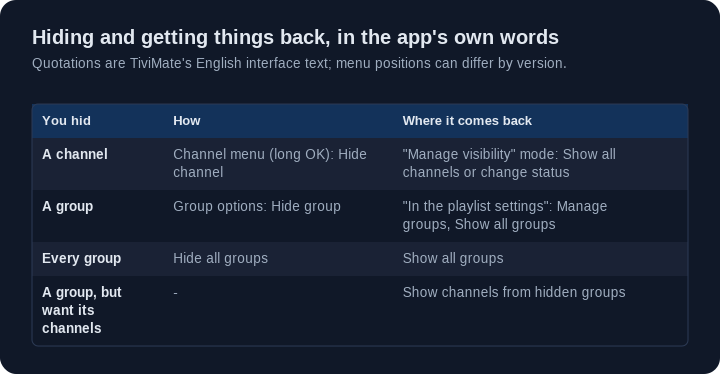
- A hidden channel: “You can show the channel again in ‘Manage visibility’ mode”.
- A hidden group: “You can show the group again in the playlist settings”.
Getting a hidden channel back
- Open the group the channel belonged to, and open the menu with a long press of OK; the app’s own hint reads “Long OK: open menu”.
- Choose Manage visibility. The developer does not say exactly where this option sits, so if it is not in that menu, look in the group’s options. Hidden channels now appear in the list with their status.
- Press OK on the channel to change its status. The on-screen hint also offers Left to “reset all” and Right to “set all”.
- Leave the mode with Back. The channel is shown again.
The app also has a Show all channels option. If you are not sure which group a channel was in, it is the quickest way to bring everything back at once.
Getting a hidden group back
- Open TiviMate’s settings and go to the playlists section.
- Select the playlist the group belongs to, and look for Manage groups.
- Switch the group back on, or use Show all groups to bring every group back.
There is a related option worth knowing: “Show channels from hidden groups”. It shows those channels without unhiding the groups themselves, which can explain why a channel you thought you had hidden is still turning up.
How to hide channels and groups
- One channel: highlight it, hold OK to open its menu, choose Hide channel and confirm at “Hide channel?”.
- A group: open the group’s options and choose Hide group, then confirm at “Hide group?”.
- Everything at once: Hide all groups clears the list, after which you switch on only the groups you watch. With a large playlist this is often faster than hiding groups one at a time.
Hide groups rather than single channels where you can. A provider adds and renames channels when it updates the playlist, and a hidden group catches new arrivals while a hidden channel does not. If whole new groups keep appearing after updates, look at Show newly added groups.
Reordering what you keep
Once the list is short, put it in your order. The app has Channels sorting and Groups sorting for the overall order, and explains that you can “override the sorting method for individual groups or manually sort channels in the group options”. Reorder channels and Reorder groups open a moving mode with the hint “OK: toggle selection, Up/Down: move, Left/Right: move to top/bottom”. Manual channel sorting is on the app’s own list of Premium features, so on the free version you may only be able to pick a sorting method. Our TiviMate Premium guide sets out what else the upgrade adds.
A Favourites list instead of hiding
If you watch the same twenty channels every day, a Favourites list may suit you better than hiding hundreds of others. The app’s menu text includes “Add to Favorites” and “Remove from Favorites”, and confirms each with “Added to Favorites” or “Removed from Favorites”. Display options let you choose “Show Favorites only”, “Show favorite channels first” or “Show ‘Favorites’ category”, so the short list can sit at the top while everything else stays reachable.
“Favorites management” appears on the app’s own list of Premium extras, alongside manual channel sorting, so how far you can arrange the list may depend on your version. Hiding and favourites also work together: hide the groups you never open, then mark favourites from what is left.
Favourites, hiding and blocking are different
- Favourites build a short list of channels you watch, without hiding anything.
- Hiding removes items from view for convenience. Anyone can bring them back.
- Blocking is part of parental controls, which the Play listing names as a feature. The app has Block group and Unblock group options behind a PIN. Use those, not hiding, to keep channels away from children.
If hidden channels come back
Channels that return after you hid them usually have one of four explanations:
- The provider renamed a group. A renamed group can arrive as a new group, and new groups may show unless you have changed Show newly added groups.
- The channel moved to another group. A channel that reappears under a new name or in a new group can count as a new entry, so hide it again there.
- Show channels from hidden groups is on. That option shows the channels without unhiding their groups, as explained above.
- The playlist was deleted and added again, or an older backup was restored. Both bring back the visibility settings saved at that point, or none at all.
Hiding also does not shrink the playlist itself. Your provider still sends the full channel list on every update, and the app simply shows less of it, so a hidden group will not make a slow playlist update faster or free up a connection on your plan.
Hiding the same channels on a second TV
Visibility settings are stored on each device, not in your IPTV login, so hiding channels on the living-room box changes nothing on the bedroom stick. You can repeat the steps on each device, or set up one device fully, make a backup and restore it on the others. Restoring replaces everything on the receiving device, so do it before you customise that one, not after.
Keep your tidy list safe
Hidden groups, favourites and channel order live on the device. A reset, Clear data or a new box loses them, so save a backup once the list is the way you want it; our guide to backing up and restoring TiviMate shows how. Editing a playlist’s login keeps them, while deleting and re-adding the playlist does not, as our steps to add or edit a playlist explain. The other options worth changing are in our rundown of TiviMate options to change first, and if clearing up the list is part of fixing a sluggish app, our guide to clearing the TiviMate cache covers the next step.
A tidy list is easier with a well-organised playlist. Tivimate is an independent IPTV subscription for the UK, not the TiviMate app, and its Xtream Codes login loads in TiviMate with groups you can hide or reorder. See how its groups look with a free Tivimate trial of 24 hours, no card needed, or see plans from £15.
Frequently asked questions
How do you hide channels on TiviMate?
Highlight the channel, hold down OK on the remote to open its menu, and choose Hide channel, then confirm. To hide a whole group, open that group's options and choose Hide group. Hiding a group is usually better than hiding channels one by one, because channels a playlist update adds to that group stay hidden too.