TiviMate was built for this kind of screen. Its Google Play listing says it “is designed for Android TV and remote control navigation”, and Google TV is Google’s newer home screen on top of Android TV, with the same Play Store underneath. This guide covers which UK televisions and boxes can run it, the steps on each kind of menu, and what to do if the listing will not appear. TiviMate is made by Armobsoft FZE. Tivimate, which runs this site, sells an IPTV subscription and is not the app’s developer.
Which UK televisions and boxes run Google TV
The brand does not decide it; the model does. Most manufacturers sell sets on more than one system, so look in the TV’s settings under About, or on the spec sheet, for the operating system.
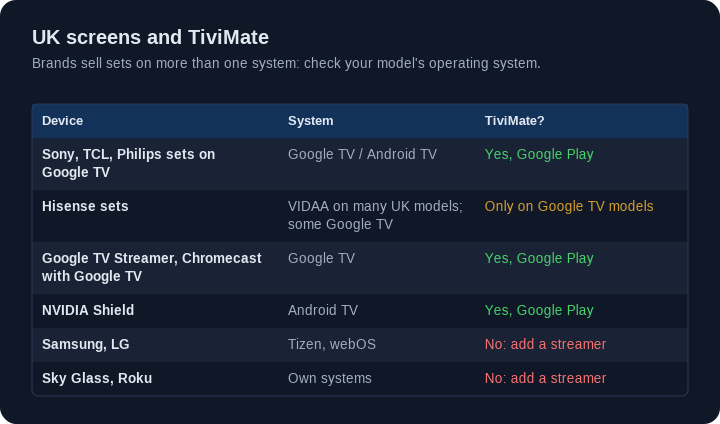
- Google TV or Android TV built in: many Sony Bravia, TCL and Philips sets, and some Hisense models.
- Streamers: the Google TV Streamer, the older Chromecast with Google TV, and the NVIDIA Shield, which runs Android TV.
- Not Google TV: Samsung (Tizen), LG (webOS), Hisense sets on VIDAA, Sky Glass and Roku. None of these can install Android apps.
Philips is a split range too: Which? says its cheaper sets run Philips’ own Titan OS and its pricier ones Google’s system. The full list of devices, each with a source, is our TiviMate device compatibility table.
Hisense: VIDAA or Google TV?
TiviMate on a Hisense TV depends entirely on which system that set runs. Hisense uses its own VIDAA system on many models sold in the UK, and What Hi-Fi’s Hisense buying guide describes UK models on VIDAA alongside one where “the Google TV operating system comes as standard”. Some Hisense models elsewhere use Fire TV. VIDAA has no Google Play, so TiviMate cannot go on it by any route. If your Hisense shows a VIDAA home screen, plug a Google TV Streamer or a Fire OS stick into an HDMI port and set TiviMate up on that.
Getting TiviMate from Google Play on Google TV
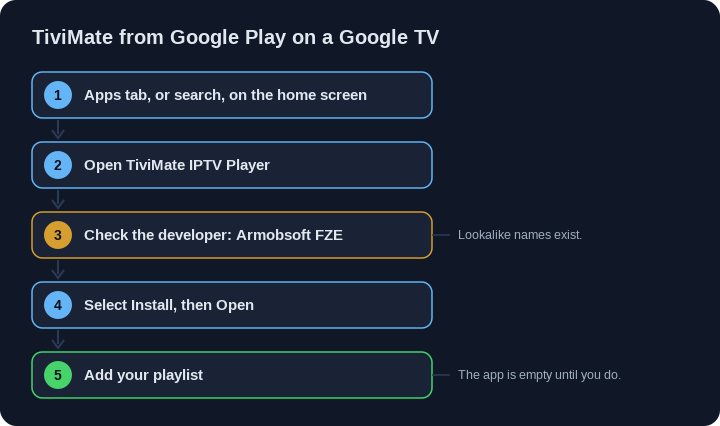
Google’s own help page, Install apps on Google TV, describes the route: the Apps tab at the top of the home screen, or a search, then Install. For TiviMate:
- On the Google TV home screen, go to the Apps tab, or use the search at the top.
- Search for TiviMate and open TiviMate IPTV Player.
- Check the developer reads Armobsoft FZE. Lookalike names exist on the store.
- Select Install, then Open. The app is empty until you add a playlist.
When we read the UK listing on 27 November 2026 it showed more than 5 million downloads and a last update on 22 June 2026. The app is free to install, and any upgrade is bought later inside it.
On an older Android TV menu
If your set or box shows the older Android TV home screen, such as an NVIDIA Shield or an earlier Sony, here is how to install TiviMate on Android TV: open Apps, then the Google Play Store, search for TiviMate, check the developer, and select Install. Both menus lead to the same app and the same updates.
Two Google TV modes that hide the Play Store
If a Google TV set has no Apps tab and search finds nothing to install, the TV itself may be fine. Two setup choices block app installs, and both are easy to miss.
- Basic TV. Sets with Google TV built in can be set up without a Google Account. Google’s help page on basic TV says it is only on televisions that come with Google TV, and that some features are not available in it; app installs are among them. To leave it, scroll to the Google TV banner on the home screen, select Set up Google TV and follow the steps. Google adds that once Google TV is set up you cannot go back to basic TV without a factory reset.
- A child’s profile. Google’s install page says apps work for every profile on the TV “except for children’s profiles”. If the household’s TV opens on a child’s profile, switch to your own profile before you install or open TiviMate.
If Google Play does not show the app
Google Play only offers apps that suit the device, and cheap boxes that are not Google-certified may run a phone version of Android with a TV-style menu, or no Play Store at all. On those you can use the developer’s own file: install the Downloader app, allow it to install unknown apps in the device’s security settings, and enter the developer’s code 272483, which leads to tivimate.com’s own file. Our guide to the TiviMate Downloader code shows where it goes. Use only that code or Google Play; a file promising unlocked extras is a modified copy, and we do not link to them.
After the app is on the TV
- Add the details your provider sent: our playlist guide covers Xtream Codes, M3U and Stalker.
- Check the guide has filled in, and follow the rest of our five-step TiviMate setup.
- On a TV, auto frame rate is the setting most worth a look, because it can remove judder on football; see which settings to change first.
On a Google TV device, the upgrade is paid inside TiviMate with the Google account on that device; our guide to what Premium adds explains the options.
Common problems on Google TV
- Not enough space. Remove apps you do not use, then try again. A large playlist and guide need room too.
- Installed, but not on the home screen. Look in the full apps list under Your apps; new apps are not always pinned to the first row.
- Play will not start the download. Check the Google account on the device and the internet connection.
- The app crashes on opening after it worked before. Try clearing TiviMate’s cache first. If that fails, reinstall: Google’s steps are the Your apps row, hold Select on the app, then View details and Uninstall. Save a backup first, because uninstalling removes the playlist and favourites with the app.
- Channels stop and start. See our TiviMate buffering fixes; a wired connection helps on a TV near the router.
If you have the TV set up and need something to watch, Tivimate is an independent IPTV subscription for the UK, not the TiviMate app. Its Xtream Codes login works in TiviMate on any Google TV device, and you can try it with the free 24-hour Tivimate trial, with no card, before choosing from plans from £15.
Frequently asked questions
How do you update TiviMate on Google TV?
A copy from Google Play updates like your other apps when automatic updates are on. To check by hand, search for TiviMate on the Google TV home screen, open its Play listing and choose Update if it is offered. A copy installed from the developer's own file instead checks for its own updates, according to tivimate.com.
How do you put TiviMate on an NVIDIA Shield?
The Shield runs Android TV, so it is a Google Play install: open the Play Store from the home screen, search for TiviMate, check the developer reads Armobsoft FZE and choose Install. Its wired Ethernet port is worth using for IPTV if your router is close enough.
Can you get TiviMate on an LG TV?
Not on the TV itself. LG televisions run webOS, which has no Google Play and cannot install Android apps. Plug a Google TV Streamer or a Fire OS Fire TV Stick into a spare HDMI port and install TiviMate on that, or use a player that is listed in LG's own app store.