Channels can play perfectly while the guide is blank, stuck on Tuesday or an hour out. That is because the guide is a second download with its own address and its own update schedule. This page explains how the TiviMate guide gets its data, where the address goes, and the fixes for each fault, in the order worth trying them. TiviMate is made by Armobsoft FZE; Tivimate, which runs this site, sells an IPTV subscription and is not the developer. The setting names below are quoted from the app’s own English text.
How the guide works in TiviMate
The Google Play listing describes a TV guide you can “browse the full program schedule” in. TiviMate draws the grid; the listings come from a file in XMLTV format, a common format for TV schedules, which a guide address points to. The app downloads that file and matches each channel in your playlist to an entry in it by its ID. If the IDs match, the programmes appear. If they do not, the row stays empty.
Where the guide address goes
- Xtream Codes login. The guide address is normally created with the playlist. If it is missing, remove the playlist and add it again.
- M3U link. You often add it yourself. When you add an M3U playlist the app asks you to “Enter EPG URL for the playlist”, adding that “You can add or change it later in the settings” and that “XMLTV format is only supported”.
- Stalker portal. The guide comes from the portal. If none appears, ask the provider.
A guide address with one wrong character downloads nothing, so type it carefully. Our guide to the three playlist types shows where each one comes from.
When the EPG failed to update
“TiviMate EPG failed to update” covers several faults with one symptom. Work down this list and stop when the guide fills in.
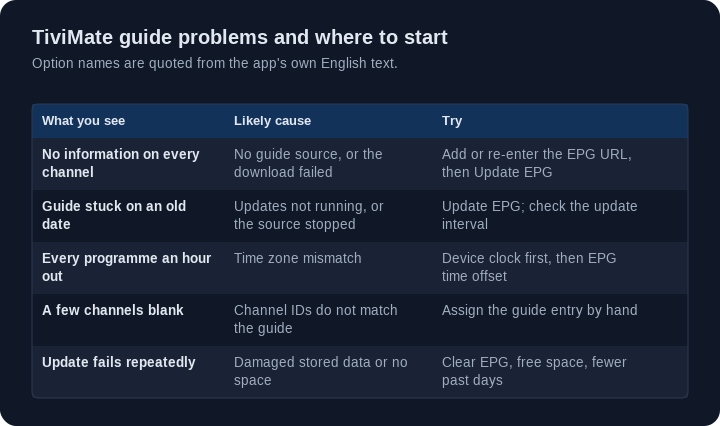
- Run Update EPG. Leave the app open while it downloads; a guide for thousands of channels takes a while on a Fire TV Stick.
- Check the source. There should be at least one guide address for the playlist, switched on. Re-enter it, or ask the provider whether it has changed.
- Check the schedule. The app has an “Update interval, hours” setting. Its own upgrade screen lists “Customizable EPG update intervals” among the Premium extras, so on the free version you may not be able to change it. A stick that sleeps instead of switching off may rarely restart the app, so a manual update after a long gap helps.
- Clear EPG, then update. An interrupted download can leave stored data in a bad state. Clear EPG removes guide data only, then Update EPG fetches it fresh.
- Free up space. Guide files for large playlists are big. Remove apps you do not use, hide groups you never watch (our guide to hiding and unhiding groups shows how to get them back), and keep fewer days with “Past days to keep EPG”.
- Rule out the source. If the guide stops on the same date on every device you own, the file has stopped being refreshed at the provider. Tell them the date the listings end; channels still play meanwhile.
If the problem is the whole app rather than the guide, start with our checklist for when TiviMate is not working.
Programmes an hour out: the time offset
When every programme is early or late by the same amount, the guide and the device disagree about the time. Check the device’s date, time and time zone first, and set it to automatic network time. If the device is right, use the app’s “EPG time offset, h:min” to shift the guide until it matches what is on screen. The XMLTV format says that “if no explicit timezone is given, UTC is assumed”, so a file that gives UK local times without a time zone shows an hour out all summer, while British Summer Time is an hour ahead of UTC. If the offset is right in winter and wrong after the clocks go forward, that is the cause; recheck it at each change.
Some channels with no listings
When most rows are filled and a few are blank, those channels’ IDs do not match the guide file. Highlight the channel, open its menu with a long press of the select button, and look for the option to assign a guide entry by hand. Search by name and pick the right one. Regional channels are a common trap in the UK: the same channel can be listed once per region, and the wrong region gives the wrong local news slot. Some channels simply have no listings in a given source.
Where to find free EPG sources
Before you look for free EPG sources for TiviMate, start with your provider’s own guide, because its channel IDs should already match your playlist, and it costs nothing extra. A separate source only helps if it lists your channels with matching IDs, or if you are willing to assign channels by hand. One free option is iptv-org/epg, an open-source tool that downloads schedules from listed websites and writes a guide.xml file on your own computer, which you then host somewhere TiviMate can reach. It is a project for the technically confident. Be wary of free guide links passed around online: you cannot see who runs them or how long they will last. We have not compared guide sources, so we name no winner.
What else depends on the guide
Catch-up and recordings set from the guide both read its times, so a guide an hour out makes a scheduled recording miss the start. Fix the offset before blaming the recorder; our guide to recording and catch-up on TiviMate covers the rest. Other guide options, such as how many past days to keep, sit with the playback options in our guide to the settings worth changing first.
Tivimate is an independent IPTV subscription for the UK, not the TiviMate app. Its Xtream Codes login includes a TV guide and catch-up, so the guide arrives with the playlist. Try it with the no-card 24-hour Tivimate trial and check the guide on your own channels, then compare plans from £15.
Frequently asked questions
How do you add EPG to TiviMate?
With an Xtream Codes login the guide usually arrives with the playlist and there is nothing to add. With an M3U link, ask your provider for its EPG address and enter it as a guide source for that playlist; the app says only the XMLTV format is supported. Then run Update EPG and give it a few minutes.
How do you get EPG on TiviMate if it is blank?
Blank for every channel means no guide source is attached or the download failed. Check the playlist has a source, run Update EPG, and look at the message if it fails. Blank for only some channels means their IDs do not match the guide file, which you fix by assigning the right guide entry to each channel.
How do you change the time on TiviMate?
Check the device's own clock and time zone first, because TiviMate reads them. If the device is right and every programme is still out by the same amount, set the guide's time offset, which the app labels EPG time offset in hours and minutes, until the grid lines up with what is actually playing.