Getting TiviMate just right takes an evening: playlists, favourites, hidden groups, guide matches. All of it lives on one device, and a factory reset or a new Fire TV Stick wipes it. A backup file turns that evening into a few minutes. The developer’s Google Play listing does not mention backup and its website has no help pages, so every quotation below is the app’s own English interface text, which we read inside the developer’s current app file on 27 November 2026. We did not run it on a device. TiviMate is made by Armobsoft FZE; Tivimate, which runs this site, sells an IPTV subscription and is not the developer.
What backup and restore do, in the app’s words
- Back up data asks you to “Select a folder to save the backup file to”, then reports “Backup created successfully” or “Failed to create backup”.
- Restore data asks you to “Enter link to a backup file, e.g. on Dropbox or Google Drive, or select a local backup file”. Before it starts it warns: “Your current data and settings will be replaced with data and settings from the backup. The app will be restarted to finish the restoring process. You may need to manually start it.”
The developer calls the contents “data and settings” and publishes no list of what that covers. Assume the file holds your playlist logins and keep it as private as a password. Recordings are not mentioned, so copy a recordings folder separately if you keep one.
Is backup a paid feature?
The developer does not say. The app’s own upgrade screen lists multiple playlists, favourites management, catch-up, auto frame rate and more, without naming backup. IPTV Help Center’s settings guide places Backup data under Settings, General and marks it as Premium. Check your own copy: if the option shows a lock, it needs Premium on that device. Our guide to buying Premium in the UK covers where to pay. On the free version with one playlist, re-entering a login after a reset takes a few minutes, so the loss is smaller.
How to back up TiviMate
- Open TiviMate’s settings and find Back up data. The developer publishes no menu path, and it can move between versions.
- Choose a folder. A USB drive is the better choice, because it survives a reset of the device.
- Allow storage access if the app asks, and wait for “Backup created successfully”.
- Copy the file off the device: to a computer, a USB drive or cloud storage.
- Back up again after any change you would hate to redo, and whenever your provider sends new login details.
Before your first backup, it is worth going through the settings worth changing first, so the file you keep is the setup you want.
Where to keep the backup file
A backup saved only on the device it came from protects you from a bad setting change and nothing else. A reset, a Clear data or a broken stick can take it too. Pick a home for the copy before you need it:
- A USB drive is simplest on boxes with a USB port, and it moves straight to the new device.
- Cloud storage such as Google Drive or Dropbox suits Fire TV Sticks, which have no spare port; upload the file from a phone or computer, then use its link in Restore data.
- A computer is a good second copy that stays out of reach of any reset.
If the folder list looks empty or the app cannot see your drive, Android may be limiting file access. The app has its own message for this case: “The file system access can be restricted. Try to use the system picker.” Choose the system picker when it is offered and select the folder there. Name the file with the date, so you can tell your newest backup from an old one.
How to move TiviMate to a new device
Keep the old device working until the new one is fully set up. The usual way to lose a setup is to reset or give away the old stick before checking that the restore worked.
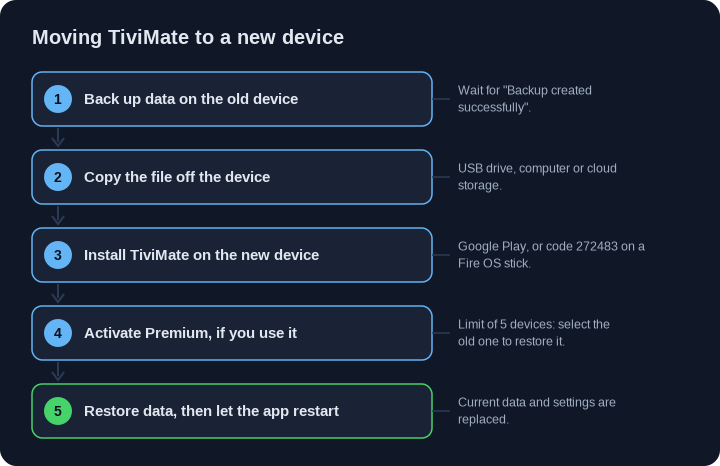
- On the old device, back up and copy the file off it.
- On the new device, get the app: from Google Play on Google TV, or with the developer’s code on a Fire OS stick, as in our guide to the devices that run TiviMate.
- Activate Premium on the new device if you use it. If you are at the limit, the app says “Limit of 5 devices is reached. Select your existing device if you want to restore the activation”, and you can manage the list on tivimate.com or in the TiviMate Companion app.
- Choose Restore data and pick the file or paste a link to it.
- Let the app restart, open it again if it does not, and give the channels and the guide a few minutes to load.
Before a reset or a move: a short checklist
- Make a fresh backup and confirm you saw “Backup created successfully”.
- Copy the file off the device and check the copy opens or at least shows a sensible size.
- Write down your playlist login and the address of any separate guide source, in case the restore fails.
- Note which device names hold your Premium activation, so you can choose the right one at the 5-device limit.
- Copy any recordings you want to keep, since the backup does not say it includes them.
With those done, a failed restore costs you a few minutes of typing instead of an evening.
Restoring from Google Drive, a USB drive or a file manager
The app offers three routes, and the right one depends on where the file sits.
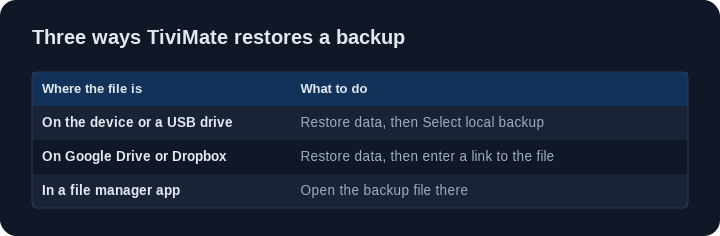
For a TiviMate backup to Google Drive, note that the app does not upload anywhere itself. Save the file to a folder, move it to a phone or computer, upload it to Drive or Dropbox, and paste a share link in Restore data on the new device. If the link does not load, download the file onto the device and use Select local backup instead. The app also says “You can restore a backup file by opening it in a file manager”.
If the restore fails
- “Failed to restore data”. Make a fresh backup on the old device, if you still have it, and try again with the new file.
- The file is not in the list. Move it to the top level of the device’s storage or the USB drive and keep its name, or restore from a link.
- Groups come back empty. Groups fill from the playlist, so the login in the backup may have expired or changed address. Update it using our steps to add a playlist.
- The guide is empty. Wait a few minutes for it to download, then see our TiviMate EPG fixes.
Keep two copies: the newest, and the last one you know worked. A backup is a snapshot, not a sync, so changes on one device do not reach another until you back up and restore again.
A backup also carries your provider’s login across. Tivimate is an independent IPTV subscription for the UK, not the TiviMate app; its Xtream Codes login moves to a new box with your backup or can simply be typed again. Try it with the free 24-hour Tivimate trial, no card needed, or see plans from £15.
Frequently asked questions
How do you back up TiviMate?
Open TiviMate's settings and choose Back up data. The app asks you to select a folder to save the backup file to; pick a USB drive if the device has one, and wait for the message Backup created successfully. Then copy the file somewhere other than the device, such as a computer or cloud storage, so a reset cannot take it with it.
How do you reset TiviMate without losing your setup?
Back up first, then reset. Make a backup file and copy it off the device, then clear the app's data or reset the device. Afterwards, choose Restore data and pick the file. The app warns that your current data and settings will be replaced by the backup's, and it restarts itself, so you may need to open it again.