A channel that freezes every few minutes, always at the worst moment of the match, is a familiar IPTV complaint. The quickest way to fix it is to find out where the stall starts before touching a setting. This guide gives the one test that tells you, then the TiviMate options worth changing, in order, with what each does in the app’s own words. TiviMate is made by Armobsoft FZE; Tivimate, which runs this site, sells an IPTV subscription and is not the developer. Nothing here is a measured result.
Step 1: is it TiviMate at all?
The Google Play listing calls TiviMate “a media player only”. It plays what arrives, and buffering means the video is arriving more slowly than it plays.
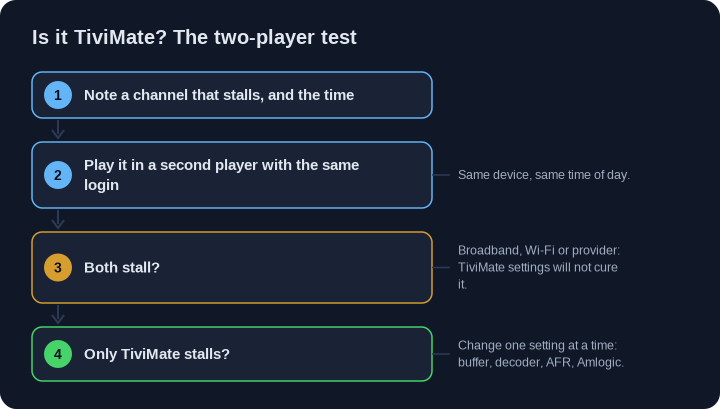
- Note a channel that stalls and the time it happened.
- Add the same login to a second player on the same device; our guide to other players by device lists some.
- Play the same channel at about the same time.
- If it stalls there too, TiviMate’s settings will not cure it. If only TiviMate stalls, carry on to step 2.
One evening proves little; repeat the test on another day if the result surprises you.
Step 2: the buffer size
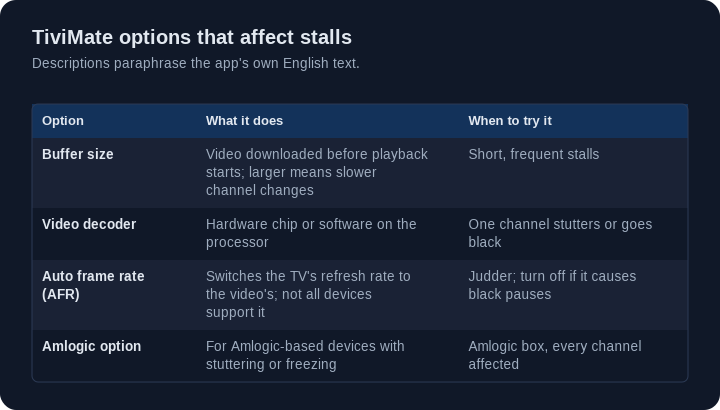
This is the setting most people mean by a TiviMate buffering fix. The app describes it plainly: “The buffer size determines duration of video that must be downloaded to start playback. Try increasing this size if you frequently see buffering while watching. This can increase the channel switching time.” So a bigger buffer rides out short dips, and every channel takes a little longer to start. Move up one step, watch the same channel, and put it back if nothing changes. The starting values one guide suggests, and where the option sits, are in our guide to the settings worth changing first. The app’s upgrade screen does not list buffer size among the paid extras.
A buffer cannot help a stream that arrives slower than it plays all the time. That is a line or a server problem.
Step 3: the video decoder
TiviMate lets you choose a Hardware or Software video decoder. Hardware uses the device’s video chip and is the usual choice; software uses the main processor. If one channel stutters or shows a black picture while others are fine, try the other decoder for that channel only. A software decoder works a small Fire TV Stick harder, so it can make things worse on other channels.
Step 4: the Amlogic option, on boxes that need it
Many cheaper Android TV boxes use Amlogic chips. TiviMate has an option for them, which it explains in its own words: “Some devices based on Amlogic chipset can have bad picture quality during playback (stuttering, freezing or similar). Enabling this setting can improve video playback.” If your box’s spec sheet says Amlogic and every channel stutters a little, it is worth one try.
Step 5: is it really buffering?
- A short black pause on every channel change. That may be auto frame rate switching the TV’s mode, which the app says not all devices support. Turn it off to compare. It is a paid feature, so not everyone has it on.
- Slow to start, then fine. That is a large buffer doing its job. Try one size smaller.
- A three-digit number. That is an error from the server, not buffering; see our TiviMate error codes list.
- Nothing plays at all. Start with our checklist for when TiviMate is not working.
If both players stall: the network
This is how to stop buffering on TiviMate when the app is not the cause. Try these one at a time, on the same channel:
- A cable or 5 GHz Wi-Fi. A stick behind the TV, far from the router, often has a weak signal. An Ethernet adapter or a mesh point nearer the TV helps.
- Restart the router. It clears a lot of slow evenings.
- Turn off a VPN to test. It adds a stop on the way. We do not suggest a VPN to get round a provider’s restrictions.
- Watch for other users. Large downloads or game updates on the same line compete with your stream.
On a Fire TV Stick
The same steps apply, with a few points specific to Amazon’s sticks. They sit behind the television, often a long way from the router, so Wi-Fi strength is the first suspect; Amazon sells an Ethernet adapter for its sticks, and a mesh point near the TV does the same job. Free storage matters too, because a nearly full stick slows down in general and struggles to save a large guide. To clear the cache, open Settings, Applications, Manage Installed Applications, choose TiviMate, then Clear cache, which keeps your playlists; our guide to clearing the TiviMate cache explains the difference from Clear data. If you are thinking of replacing an old stick, check the model first: the newest sticks run Vega OS and cannot run TiviMate at all, as our list of sticks that still accept TiviMate explains, and our guide to choosing a device for TiviMate compares the types that can.
What TiviMate is doing at the same time
Multiview runs one stream per channel on screen, and a recording in the background is another stream. Both use more of your broadband and of your plan’s connections. Close other apps on a small stick, keep some storage free, and install updates. Reinstalling is not a first step: it removes your playlists, so make a TiviMate backup first if you go that far.
Only on busy evenings or during live sport?
When a channel plays smoothly in the afternoon and stalls at 8pm or during a big match, the timing is the clue. Two things get busier at those moments: your own broadband, because more people in the house and the street are online, and the provider’s server, because more of its customers are watching. A few checks tell them apart:
- Run a speed test on a phone on the same Wi-Fi while the channel stalls. If it is far below your usual daytime figure, the slowdown is on your line or your Wi-Fi.
- Try a large on-demand video from another service at the same moment. If that plays smoothly while the IPTV channel stalls, the stream itself is arriving slowly.
- Note whether every channel stalls or only the popular ones. Stalls limited to the channel everyone is watching point at the provider.
A larger buffer can smooth over brief dips at busy times, but it cannot make up for a stream that arrives too slowly for the whole evening.
How to tell whether a change worked
Buffering comes and goes, which makes it easy to credit the wrong fix. Change one thing at a time, then watch the same channel for at least as long as it usually takes to stall, at a similar time of day. Write down what you changed and what happened. If nothing improves after a fair test, put the setting back before trying the next one, so you do not end up with a slower channel switch and a buffer problem.
If it points to the provider
Send the provider the channel, the times and what you have ruled out. To compare services, try another one on the same device and line. Tivimate is an independent IPTV subscription for the UK, not the TiviMate app, so we are not neutral here: you can test our service on your own channels at peak time with the free 24-hour Tivimate trial, no card needed, before choosing from plans from £15.
Frequently asked questions
Is TiviMate still working?
Yes. The developer still publishes it: the UK Google Play listing showed a last update on 22 June 2026, and the direct download for Fire OS sticks is still on tivimate.com. When TiviMate buffers, the app is rarely what stopped; it is waiting for a stream that is arriving too slowly.
How do you reset TiviMate on a Firestick?
Start gently. Open Settings, Applications, Manage Installed Applications, choose TiviMate, then Force stop and Clear cache. That keeps your playlists. Clear data is the full reset and removes your playlists and settings, so have your login details ready, and a backup file if you made one, before you use it.